


Find images based on their content: Smart Search in pixx.io
by Veronika Altenbach
Thursday afternoon: The LinkedIn post about the client event is scheduled to go live first thing tomorrow morning. The only thing missing is the right image: guests in conversation, good lighting, and portrait orientation. Many teams have experienced moments like this. A team photo is needed for the careers page, a shot of the product in use for the product catalog, and an exterior shot of the company building for the press release.
The images are stored in the Digital Asset Management (DAM) system. Nevertheless, the search often begins with a mental exercise: In which folder or collection was the photo saved? What was the file name? And were any keywords even assigned during upload? If an image is named differently, filed in an unexpected folder, or not tagged with keywords, no one will find it – even though it’s in the DAM.
In this post, we’ll show you how to use Smart Search and similarity search in pixx.io to start your search directly with the subject. You’ll also learn how collections and filters can further refine your selection.
Why aren’t folders, file names, and keywords enough?
Folders, collections, and file names reflect the organizational system of the person who uploaded the image. Anyone searching later often has a different question in mind. This gap typically becomes apparent in three areas:
- File names: Abbreviations like «IMG_4711» reveal a lot – except what the image depicts.
- Folders and collections: They represent projects, departments, or years – and thus the logic of the past, not the questions of today.
- Keywords: They’re only as good as the care taken when uploading. If they’re missing, the image remains practically invisible to search.
The result is familiar: existing images aren’t found, so they’re acquired twice or rephotographed.
How does Smart Search find images based on their content?
Even stricter folder structures or naming conventions only partially solve this problem. A more effective approach is a search that starts with the image’s content rather than the folder or filename. In pixx.io, Smart Search handles this.
Since October 2026, pixx.io has combined the classic keyword search with AI-powered Smart Search into a single search function. Multiple search terms are now evaluated together, even if the information is located in different fields (e.g., in the title, description, and keywords). The results are sorted by relevance. This applies to both the MediaSpace and the portals.
When Smart Search is enabled, pixx.io also takes the content of the images into account: AI-powered image analysis recognizes what is depicted in an image and finds matching images even if an image has no keywords. Thus, Smart Search goes beyond a traditional semantic search, which identifies terms through synonyms and conceptual relationships but relies on existing keywords.
Here’s an example: The photo from the last customer event is named «DSC_0815.jpg», is stored in a folder containing 400 other images, and has no keywords. No one can find it by file name or folder. With Smart Search, however, a search for «cocktail party guests» still leads to this image because pixx.io recognizes what’s depicted in it.
To help you understand why an image appears in the results list, pixx.io tags the results with labels:
- Content: The image was found by analyzing its content.
- Keyword: The search term is included in the assigned keywords.
- Title: The search term appears in the title.
This lets you see at a glance which results are truly relevant.
What should you enter for a successful search?
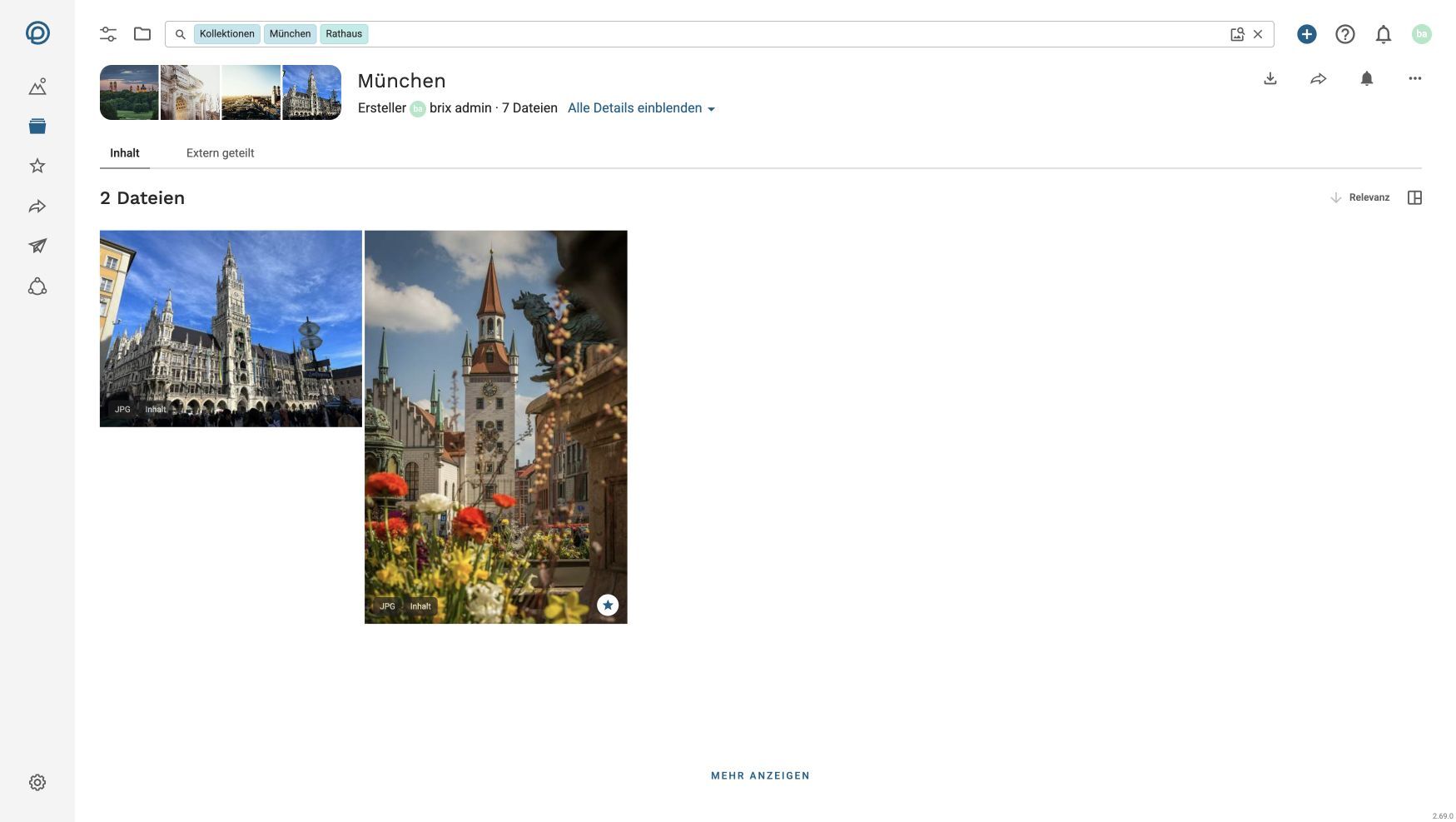
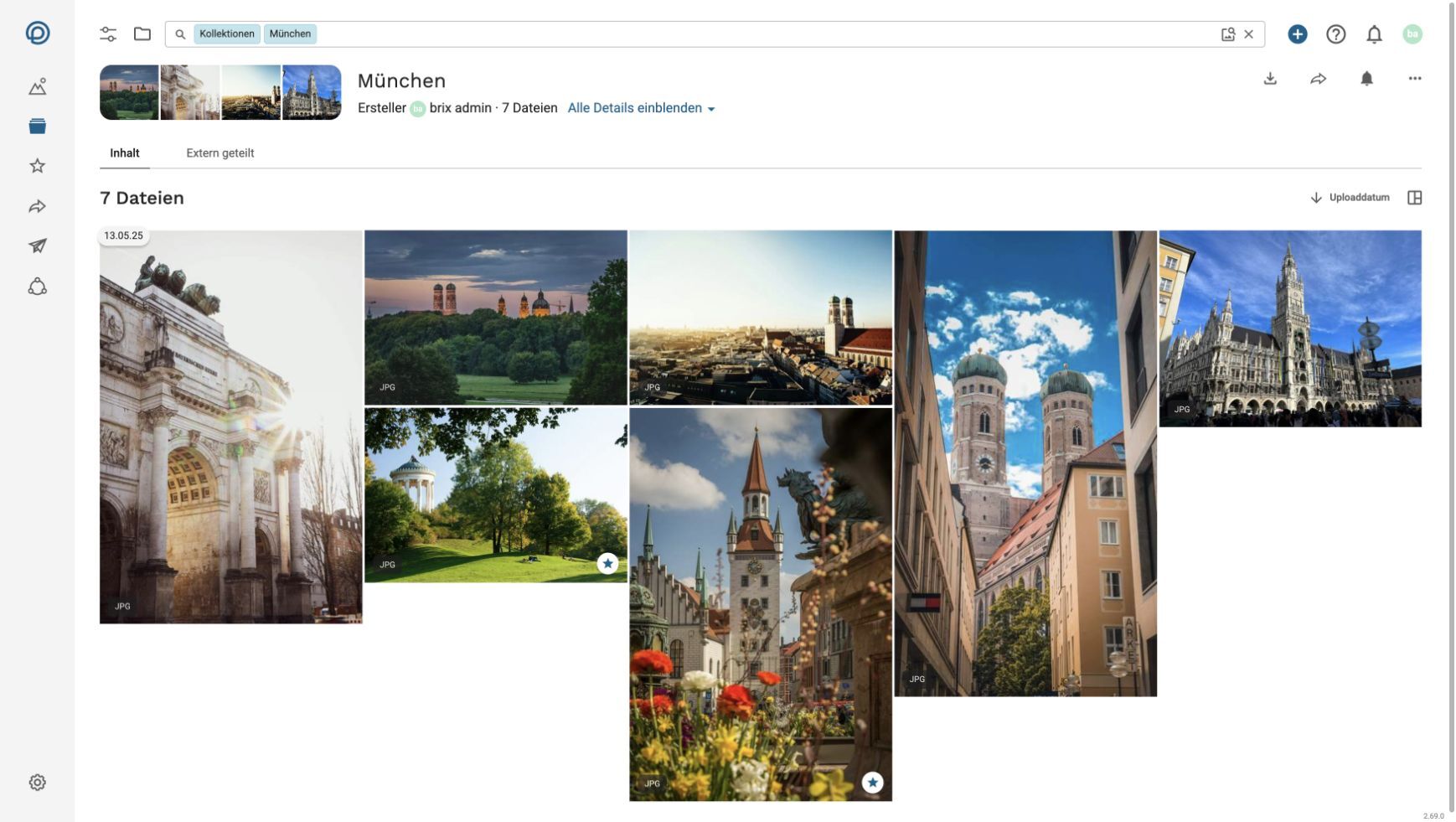
Describe what should be visible in the image instead of searching by filename. For example, for a press release about Munich, you need a photo of City Hall. Searching for «City Hall» in the «Munich» collection yields relevant images, even if the word doesn’t appear in either the filename or the keywords. The results are labeled«Content».
Specific terms describing what is visible (such as buildings, objects, situations, or landscapes) work best. Combining multiple terms also works, such as «City Hall tower.» This narrows down the results without requiring all terms to appear in the same field.
How do you find images that resemble an existing subject?
Occasionally it’s easier to show a subject than to describe it. For this, pixx.io offers the similarity search. It uses an image as a search template and suggests subjects that resemble it. You have two options:
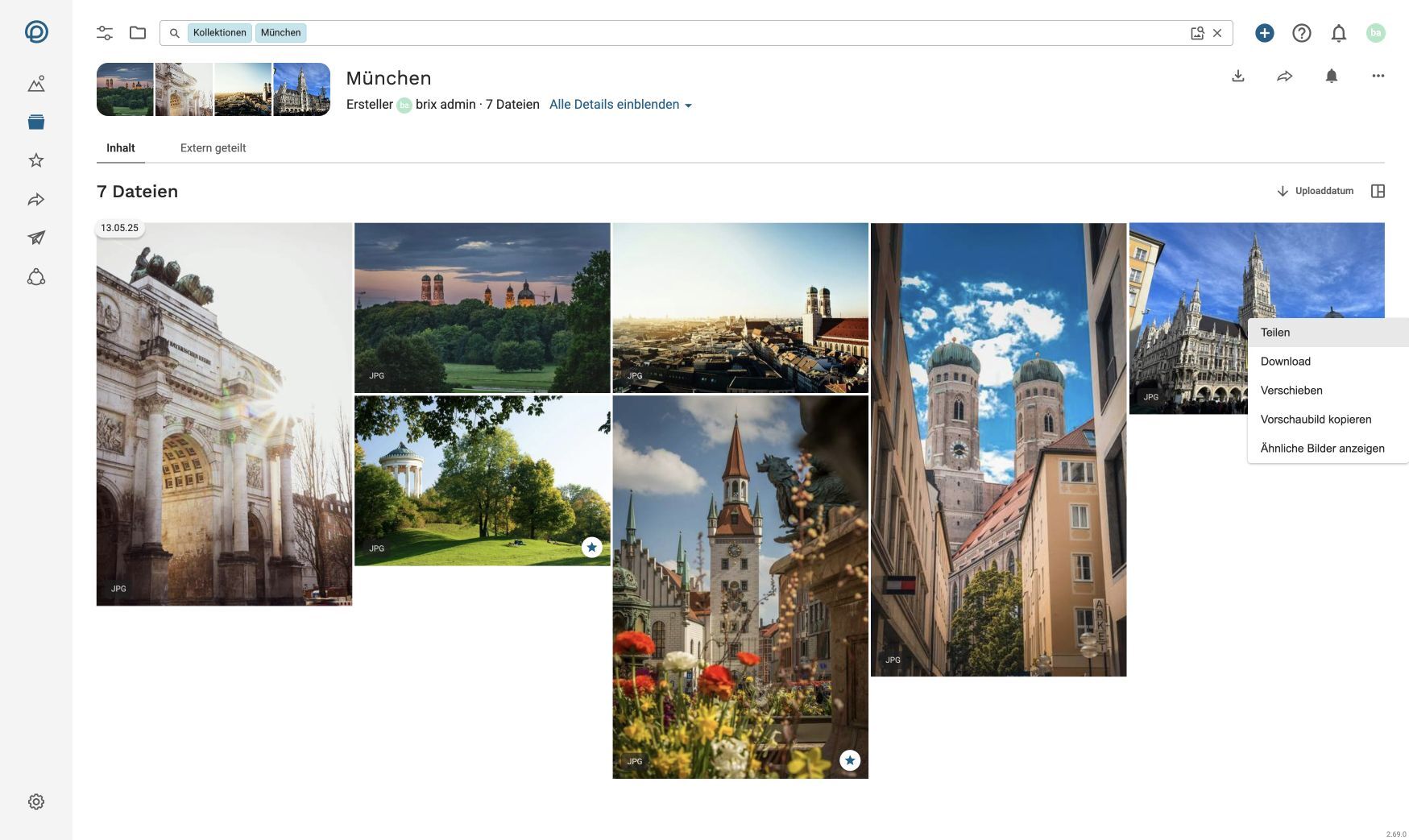
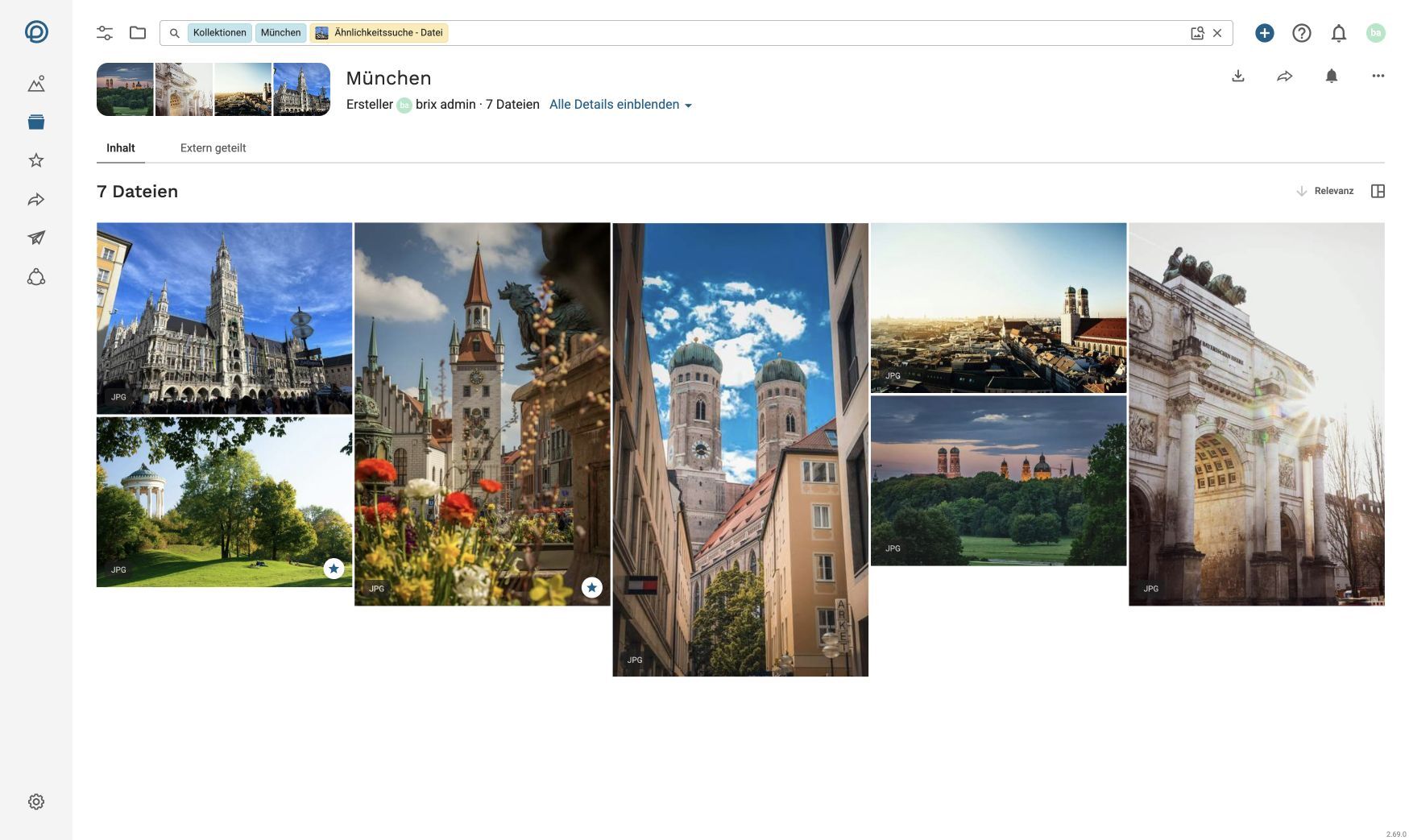
- Use an image from your library: Right-click on an image and select «Show Similar Images.» The reference image appears as a search chip, and pixx.io ranks the results by relevance.
- Upload a reference image: You can also upload an image that isn’t in the Media Space (e.g., a mood board from the agency) and find similar images in your library.
This is particularly helpful for visual concepts that are difficult to put into words. These include, for example, a specific lighting mood, a specific frame, or a particular perspective.
What role do collections and filters still play?
Smart Search does not render collections and filters obsolete. However, they now serve a different purpose. They are no longer the path to the image but rather narrow down the search:
- Collections: Open a collection and enter your search term there. pixx.io then searches specifically through the files in that collection. The opened collection remains selected even during a similarity search.
- Filters: They’re the right choice when you’re searching specifically for individual keywords, metadata, or properties.
This reverses the order. First, you define the subject; then, the context. As a result, search success no longer depends on how well folders and file names are organized.
To learn what search features a DAM should fundamentally offer, read our article «The Importance of Effective Search in a Digital Asset Management System.»
What should you consider before getting started?
Smart Search is quick to enable. However, to ensure it’s truly adopted by your team, some preparation is worthwhile:
- Activation: A user with admin rights must enable Smart Search in the Mediaspace settings.
- Lead Time: After activation, pixx.io analyzes the existing image library in the background. This takes a while. Allow for this time before announcing the new search feature to your team.
- Availability: According to pixx.io, Smart Search and similarity search are included in all packages.
- Continue to Maintain Keywords: Image analysis cannot recognize anything that isn’t visible in the image. Internal project names, campaigns, or item numbers therefore still require manual tagging. A coordinated keyword strategy defines which terms your team assigns and which tasks the image analysis handles.
- Clarify data protection: According to pixx.io, the platform uses servers in Europe for face and object recognition, and data remains within its own media space. Check in advance whether this complies with your internal guidelines, especially for images containing people.
- Changing Search Habits: People who have spent years searching through folders and file names won’t automatically change their search habits. Brief examples from your collection can help with the transition.
To learn why discoverability is primarily a matter of clear responsibilities, read our article: «Discoverability in DAM: Not a Software Problem, but a Matter of Responsibility.»
Conclusion
With Smart Search, image searches start with what’s visible in the image rather than with folders and file names. With similarity search, every existing image also becomes a search template. Collections and filters narrow down the selection where necessary. For your company, this means: less time spent searching, fewer duplicate images, and an image library that works even for occasional users.
Would you like your team to find images in pixx.io based on their content?
We’ll show you practical workflows for searching, selecting images, and tagging in pixx.io, tailored to your image library. Are your images still stored on a network drive, or does your DAM only find images by filename and keywords? We’ll show you the options available for searching by image content.